Playtime Login Android Network Guide for Captive Portal Detection
Your Android phone shows Wi-Fi, but the page you wanted still will not load. If that happens while you are consulting Playtime Login, separate the network’s state from the website’s response before blaming an account. A Wi-Fi connection, Android’s internet validation and a successful request to one destination are three different observations. This guide explains how a developer can record each one.
Picture a Filipino café or shared workspace where a guest network requires an access step. The phone can join the access point before ordinary internet access is available. That is a useful test scenario for an app’s connection message. “Wi-Fi connected” may describe the transport correctly while telling the reader very little about why a particular request is waiting.
Separate the transport from the destination
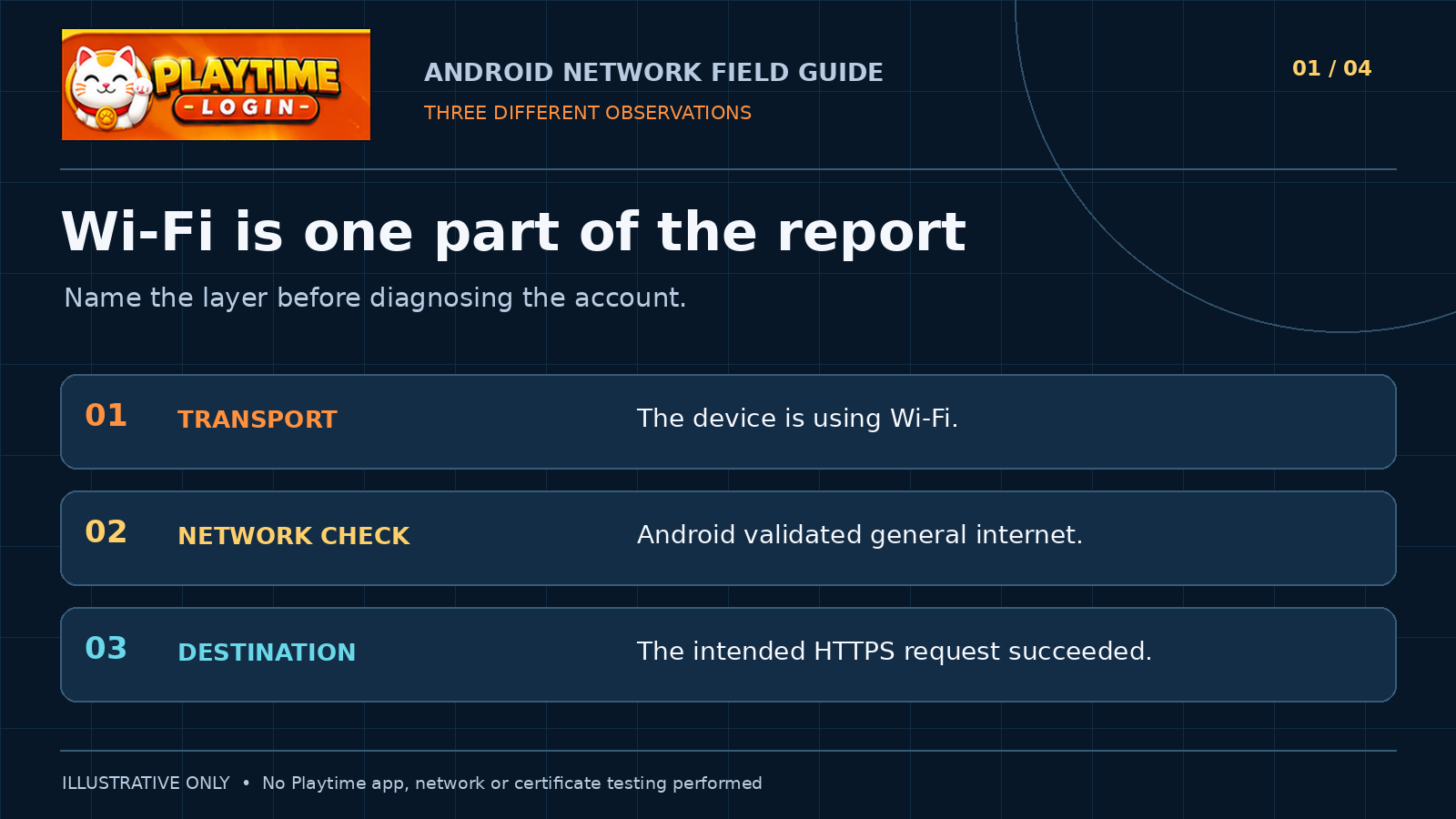
Start with three questions. Is the device using the network you intend to observe? What has Android reported about that network’s capabilities? What happened when your app contacted its intended HTTPS destination? Keeping those questions separate makes a connection report useful to the next developer. One broad “online” label can hide which observation actually failed.
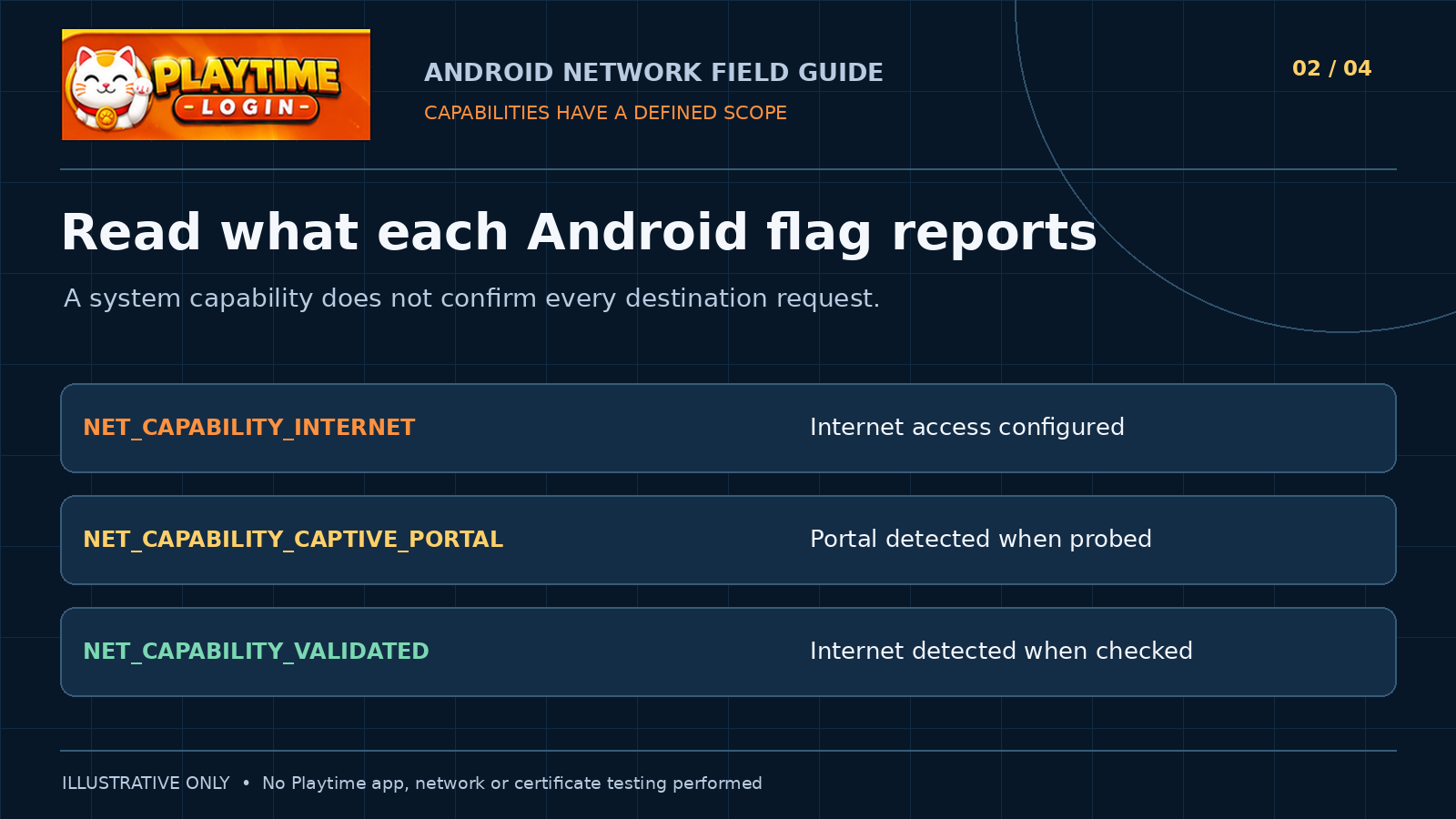
Android’s NetworkCapabilities reference distinguishes internet configuration from detected connectivity.[1] Read these flags as evidence with a defined scope, rather than as a promise that every website will respond.

A false value also needs care. For example, absence of the captive-portal flag alone is not evidence that your intended page loaded. Record the separate destination result. That prevents a support message from turning a system-level observation into a claim about a website, password or account.
Read changing capabilities through a callback
Network state can change while the app remains open. Android advises using callback events, and warns that synchronous capability queries inside onAvailable can race with changes. Use the capabilities supplied to onCapabilitiesChanged instead.[2] The NetworkCallback reference describes that callback’s argument as the new capabilities for the corresponding network.[3]
This original Kotlin excerpt reads three flags in a callback. It is an illustrative fragment for API 23 and later, not a complete app. Your app still needs its own callback registration, required permissions and lifecycle cleanup. No brand app or live network was used to produce it.
import android.net.ConnectivityManager import android.net.Network import android.net.NetworkCapabilities as NC import android.util.Log
class NetworkProbe : ConnectivityManager.NetworkCallback() { override fun onCapabilitiesChanged(network: Network, caps: NC) { val declared = caps.hasCapability(NC.NET_CAPABILITY_INTERNET) val captive = caps.hasCapability(NC.NET_CAPABILITY_CAPTIVE_PORTAL) val validated = caps.hasCapability(NC.NET_CAPABILITY_VALIDATED) val state = "declared=\(declared captive=\)captive validated=$validated" Log.d("NetworkProbe", state) } }
The log deliberately describes capabilities instead of declaring a service ready. In a fuller diagnostic tool, associate an event with the network being observed and the relevant request. If mobile data is also available, identify which network the request actually uses. Otherwise you may compare Wi-Fi evidence with a response obtained over a different connection.
Follow an illustrative portal transition
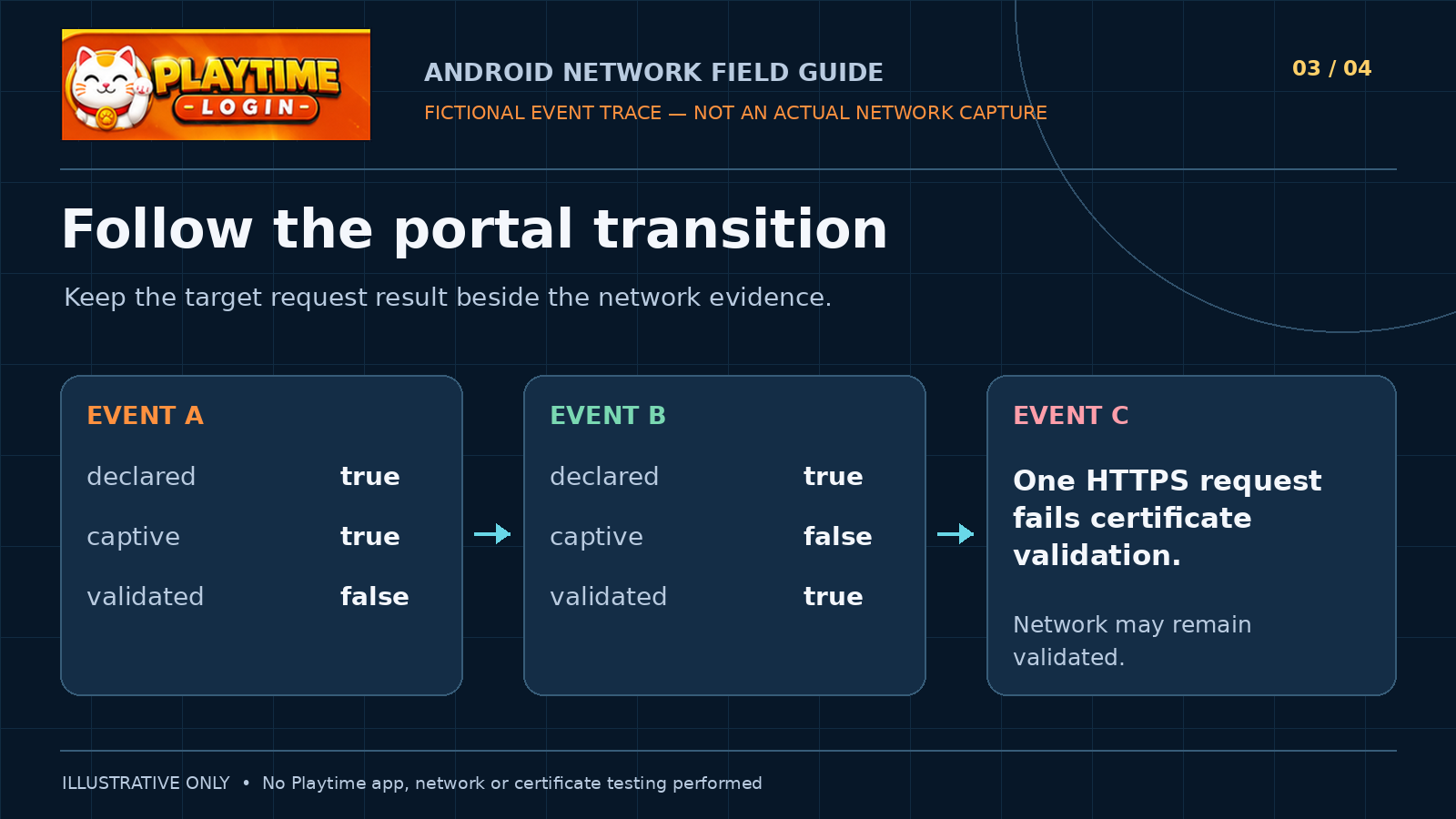
Imagine Event A reports declared=true, captive=true and validated=false. After the guest network’s access conditions are satisfied, Event B reports declared=true, captive=false and validated=true. This illustrates the transition described in Android’s network-state guide.[2] The values are a teaching example, not a capture from a café or from the brand’s infrastructure.
Now add a separate Event C: a request to one HTTPS host fails certificate validation. The network may still carry the validated flag. The useful report preserves both observations rather than replacing them with “everything is offline.” Internet validation and the certificate result answer different questions, so neither should silently overwrite the other.
Understand what the Captive Portal API reports
RFC 8908 defines a Captive Portal API with JSON state information. Its required captive boolean reports whether the client remains subject to the network’s access conditions. The API must use HTTPS, and the client must not proceed with that API interaction if it cannot validate the server certificate.[4] This is a defined mechanism for supported networks, not evidence that every hotspot implements it.
A structured portal response can explain a network-access condition without pretending that an unrelated website’s certificate warning is the sign-in page. Keep API state, Android capability events and the target request as separate records. If one of those observations is unavailable, mark it unavailable rather than inventing a value to make the timeline look complete.
Keep HTTPS errors attached to the failed request
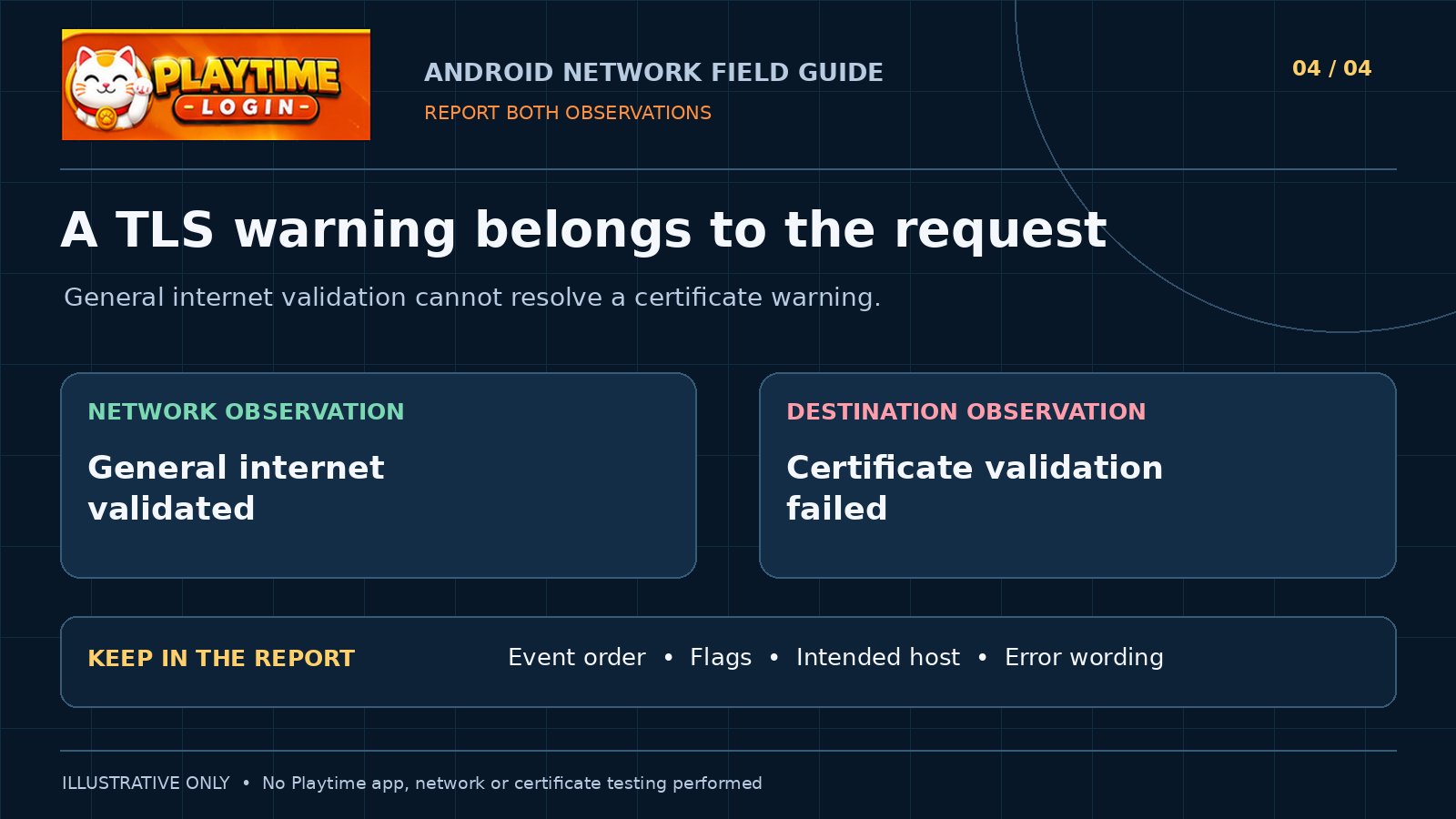
Chrome’s guidance says a full-page “Your connection is not private” message can involve the site, network or device.[5] The message identifies a connection problem; it does not diagnose a wrong password. Preserve the displayed error and the intended hostname, then investigate the request and certificate conditions in an environment you control. A successful network probe does not resolve that warning.
For a useful report, write down the event order, Android and browser versions, capability values and the result of the specific HTTPS request. Include the exact non-sensitive error wording. Keep passwords, one-time codes, cookies and personal portal URLs out of a shared log. These fields let someone compare the same failure across two observations without exposing the account itself.
When using the Playtime Login account-access guide as background reading, keep its website instructions separate from your network evidence. This tutorial does not establish which Android APIs the brand uses or whether its infrastructure passed a test. An account guide and a diagnostic trace have different roles.
A clear connection message names the layer it can support: network access still required, general internet validated, or a particular request failed. Give the reader that explanation before proposing an account fix. In a Filipino café or shared office, that distinction can turn “may Wi-Fi pero ayaw mag-load” into a concrete, answerable technical question.
Sources
[1] Android Developers — NetworkCapabilities https://developer.android.com/reference/android/net/NetworkCapabilities
[2] Android Developers — Read network state https://developer.android.com/develop/connectivity/network-ops/reading-network-state
[3] Android Developers — ConnectivityManager NetworkCallback https://developer.android.com/reference/android/net/ConnectivityManager.NetworkCallback
[4] IETF RFC 8908 — Captive Portal API https://www.rfc-editor.org/rfc/rfc8908.html
[5] Google Chrome Help — Check a site connection https://support.google.com/chrome/answer/95617?hl=en
Comments
Join the discussionNo comments yet. Be the first to comment.